Equation Editor
The Kleis Equation Editor is a visual, browser-based tool for building mathematical expressions. Instead of typing LaTeX or Typst syntax by hand, you click palette buttons to assemble an expression tree. The editor renders each change live through the Typst compiler and can type-check, verify, and export the result — all without leaving the browser.
Quick Start
Prerequisites
- Kleis compiled and in PATH (see Starting Out)
- A modern web browser (Chrome, Firefox, Safari, Edge)
Launch
Start the equation editor server from the Kleis project root:
kleis-server
The server prints:
📡 Server running at: http://127.0.0.1:3000
Open http://localhost:3000 in your browser. You should see the editor with a header bar, a structural canvas, a symbol palette, and a gallery of examples at the bottom.
Note: The server must be started from the repository root so it can find the
static/,stdlib/, andstd_template_lib/directories. You can override the host and port with theKLEIS_SERVER_HOSTandKLEIS_SERVER_PORTenvironment variables.
Editor Modes
The header provides two mode buttons:
Text Mode
A plain textarea where you type LaTeX directly. Click Render to see the MathJax preview on the right. This mode is useful for quick previews of existing LaTeX expressions or for pasting formulas from other sources.
Text mode also provides Verify and Clear buttons.
Structural Mode
The main mode. A large white canvas displays your expression as a live Typst rendering (SVG). You build expressions by clicking palette buttons, which insert template nodes into an internal AST (Abstract Syntax Tree). The editor re-renders after every change.
Empty positions appear as green interactive overlays — these are markers (also called slots or placeholders). Click a marker to select it, then click a palette button or type a value to fill it. The canvas is scrollable and resizable; drag the bottom-right corner to adjust its size.
The Palette
The palette sits below the canvas and contains eleven tabs (nine static, two loaded dynamically from the server). Each tab groups related operations.
Basics
Arithmetic operators (+, -, ×, ÷, ±, ∓, ·, =, ≠, ∞),
fractions, square and nth roots, powers, subscripts, superscripts, mixed
indices, binomial coefficients, and factorials. Also includes common functions:
sin, cos, tan, arcsin, arccos, arctan, ln, log, exp, and
e^{·}.
A Piecewise button opens a dialog for building piecewise-defined functions with 2–10 cases.
Fences
Delimiter pairs: parentheses ( ), square brackets [ ], curly braces
{ }, angle brackets ⟨ ⟩, absolute value | |, double-bar norm ‖ ‖,
floor ⌊ ⌋, and ceiling ⌈ ⌉. Each inserts a template that wraps the
currently selected sub-expression.
Accents
Diacritical marks and decorations: dot, double-dot, hat, bar, tilde, overline, underline, vector arrow, and bold.
Calculus
Definite integrals, sums, products, limits, ordinary derivatives, partial derivatives, and gradients. Also includes integral transforms (Fourier, inverse Fourier, Laplace, inverse Laplace), convolution, kernel integrals, and Green’s function templates.
Linear Algebra
Preset 2×2 and 3×3 matrices in bracket, parenthesis, and determinant styles. A Custom Matrix button opens the Matrix Builder dialog (see below). Also provides bold vector, vector arrow, and product operators (matrix multiply, dot product, cross product).
Greek
Lowercase (α through ω) and uppercase (Γ through Ω) Greek letters.
Logic & Sets
Boolean constants, comparison operators (<, >, ≤, ≥, ≈), logical
connectives (and, or, not, implies, iff), quantifiers (∀, ∃),
set operators (∈, ∉, ⊂, ⊆, ∪, ∩, ∅), congruence, and a let-binding
template.
Physics
Quantum mechanics notation: ket, bra, inner product, outer product,
expectation value, and commutator brackets. General relativity tensors:
metric tensor g, Christoffel symbols Γ, and Riemann curvature tensor R.
POT
Projection Operator Theory templates: projection operator, modal integral,
kernel K, causal bound, residue operator, modal space, and spacetime
manifold templates.
Egyptian
Egyptian hieroglyphs from the Gardiner Sign List. This tab loads 225 core signs dynamically from the server. Features:
- Search — type a Gardiner code (e.g.
A1,D21) to filter - Category dropdown — filter by Gardiner category (A: Man and Activities, D: Body Parts, G: Birds, M: Plants, etc.)
- Scrollable grid — each glyph renders as an SVG image; click to insert
Hieroglyphs are rendered through the same Typst pipeline as mathematical
symbols — they use #image() to embed SVG files. This means they compose
freely with all other editor features. You can place hieroglyphs inside
matrices for traditional quadrat arrangement, or mix them with mathematical
notation.
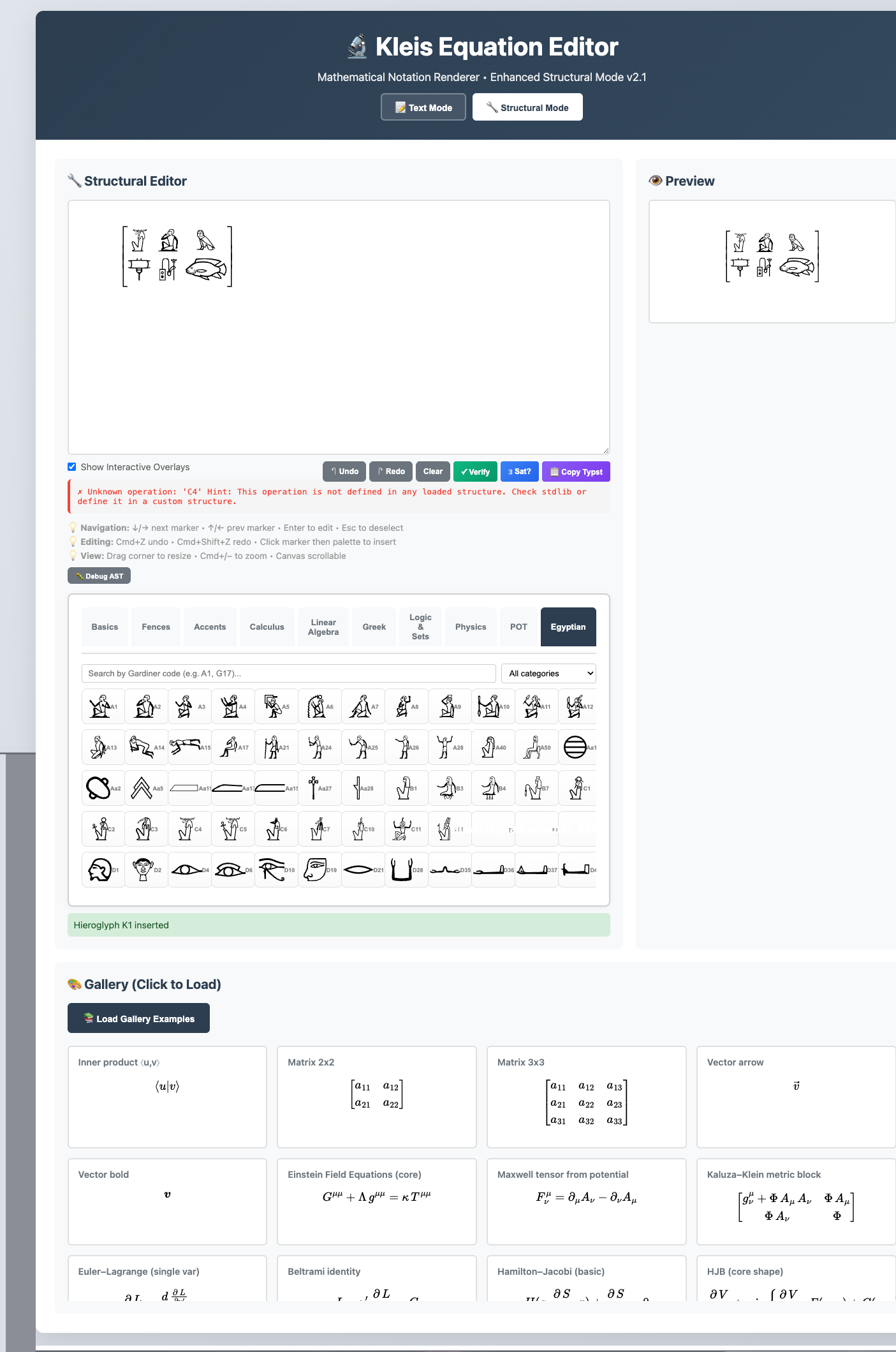
The Egyptian tab showing the Gardiner sign palette, category filter, and a 2×3 matrix of hieroglyphs in the structural editor. The gallery of mathematical examples appears below.
Electronics
Circuit components (resistors, capacitors, inductors, voltage/current sources, diodes, op-amps, and more) loaded dynamically from the server. Features:
- Category filter — filter by component type and package
- Series/Parallel composition — click composition buttons to build series or parallel connections structurally
Electronics symbols are rendered as SVG through the same Typst pipeline, and the resulting expressions can be verified against circuit theory axioms via the Graph Editor’s electronics domain.
Building Expressions
The core workflow in Structural Mode:
- Click a palette button to insert a template. The template appears in the canvas with green overlays marking empty slots.
- Click a green slot to select it. The selected slot is highlighted.
- Fill the slot: click another palette button to insert a nested expression, or type a value directly (see Inline Editing below).
- Navigate between slots with arrow keys or Tab.
- Repeat until the expression is complete.
- Undo/Redo with the toolbar buttons or keyboard shortcuts.
Each palette button inserts an AST node. Templates can nest arbitrarily deep: a fraction inside a matrix inside a sum inside an integral is built one click at a time. The editor re-renders after every insertion.
Replacing content: If you insert a template into a slot that already has content, the editor shows a confirmation dialog asking whether to replace the existing content.
Inline Editing
Clicking a marker (green slot) opens an inline text input directly on the canvas. This lets you type values, variable names, or symbols without leaving the structural view.
- Enter — commit the value and close the input
- Escape — cancel and close without changes
- Tab — commit and move to the next slot
While the inline input is active, clicking palette buttons appends symbols to the input rather than replacing the entire slot.
Modifier-click: Hold Shift, Ctrl, or Cmd while clicking a slot to open a standard prompt dialog instead of the inline editor.
Keyboard Shortcuts
| Shortcut | Action |
|---|---|
↓ or → | Next marker |
↑ or ← | Previous marker |
Tab | Next marker |
Shift+Tab | Previous marker |
Enter | Edit selected marker |
Escape | Deselect marker |
Cmd+Z / Ctrl+Z | Undo |
Cmd+Shift+Z / Ctrl+Shift+Z | Redo |
Cmd++ / Ctrl++ | Zoom in |
Cmd+- / Ctrl+- | Zoom out |
Cmd+0 / Ctrl+0 | Reset zoom |
Keyboard shortcuts are active when the structural canvas has focus. They are disabled while typing in the inline editor or other text inputs.
Matrix Builder
The Custom Matrix button (in the Linear Algebra tab) opens a dialog for creating matrices of any size:
- Size selection — hover over a 6×6 grid to preview dimensions, or type exact values (1–10 rows, 1–10 columns) into the numeric fields.
- Delimiter style — choose one of four delimiter types:
| Style | Description | Typst Environment |
|---|---|---|
[ ] | Square brackets | bmatrix |
( ) | Parentheses | pmatrix |
| | | Vertical bars (determinant) | vmatrix |
{ } | Curly braces | Bmatrix |
- Click Create Matrix to insert. Each cell appears as an editable marker.
If a marker is currently selected when you open the Matrix Builder, the new matrix is inserted into that slot, allowing you to nest matrices inside other expressions.
Type Checking
After each render, the editor automatically runs Hindley-Milner type inference on your expression. A type indicator panel appears below the toolbar:
- Green border with ✓ — type inference succeeded. Shows the inferred type
(e.g.
Scalar,Matrix(2, 2, Scalar),Complex). - Red border with ✗ — type inference found an error (e.g. dimension mismatch in matrix multiplication).
- 💡 Suggestion — an orange hint with additional context.
For example, the type indicator confirms Matrix(2, 2, Scalar) for a matrix multiplication involving a rotation matrix.
Type checking uses the same Hindley-Milner inference engine as the Kleis language itself, with type definitions loaded from the standard library. An “Unknown operation” message for new template types (such as hieroglyphs) is informational — it does not prevent rendering or export.
Verify and Sat
Two buttons invoke the Z3 SMT solver on your expression:
Verify (✓)
Tests whether the expression is a valid (always-true) proposition. The result is one of:
- VALID — the proposition holds for all values
- INVALID — Z3 found a counterexample (displayed below the result)
- UNKNOWN — Z3 could not determine validity within the timeout
Sat (∃?)
Tests whether the expression is satisfiable — whether there exists at least one assignment of values that makes it true. The result is:
- SATISFIABLE — Z3 found a witness (displayed below)
- UNSATISFIABLE — no assignment exists
- UNKNOWN — undetermined
Both buttons require the expression to be fully filled in (no empty markers).
If markers remain, the result is incomplete.
Exporting
Copy Typst
The Copy Typst button in the structural toolbar sends the current AST to the server, which produces the equivalent Typst source code. The result is copied to your clipboard.
You can paste this directly into a .kleis document. For example, building
a matrix multiplication visually, then clicking Copy Typst, produces
something like:
mat(delim: "[", 1 , 2 , 3 ; 4 , 5 , 6) dot mat(delim: "(", cos(theta) , -sin(theta) ; sin(theta) , cos(theta))
The editor is especially useful for complex expressions — nested matrices,
tensor notation with mixed indices, piecewise functions — where hand-writing
Typst syntax is tedious and error-prone. You can also write Typst math
directly in your .kleis source files if you prefer; the editor and inline
Typst are complementary approaches.
Visual Editor → Copy Typst → Paste into thesis.kleis → PDF
See Document Generation for the full compilation pipeline.
Debug AST
The 🐛 Debug AST button toggles a panel showing the raw JSON AST of your expression. This is useful for understanding the editor’s internal representation or for debugging templates.
The debug panel provides:
- Copy — copies the JSON to clipboard
- Download — saves the AST as a
.jsonfile
The Gallery
The bottom of the page shows a gallery of example expressions. Click any card to load it into the editor. Gallery examples cover a wide range:
- Linear algebra — inner products, matrices, vectors, determinants
- Physics — Einstein field equations, Maxwell tensor, Kaluza-Klein metric, Schrödinger equation, Pauli matrices, quantum states
- Calculus — limits, double/triple integrals, Euler-Lagrange, Hamilton-Jacobi
- Analysis — Riemann zeta (Dirichlet series, Euler product, Mellin integral), Gaussian integral
- Set theory and logic — membership, quantifiers, implications
- Trigonometry — sin, cos, tan, hyperbolic functions, Euler formula
- Accents — velocity (dot), acceleration (double-dot), averages (bar)
- Statistics — variance, covariance
- Number theory — congruence modulo, Fermat’s little theorem
- Rich matrices — matrices with fractions, square roots, rotation matrices
- Ellipsis patterns — horizontal, vertical, diagonal dots in sequences and matrices
- Piecewise functions — absolute value, sign function
Loading a gallery example replaces the current expression. The gallery is populated from the server and loads automatically on page load.
Egyptian Hieroglyphs
The Egyptian tab demonstrates the editor’s extensibility beyond mathematics.
225 core signs from the Gardiner Sign List are available, rendered as SVG
images through Typst’s #image() function.
Browsing and Inserting
Open the Egyptian tab in the palette. The glyphs load from the server and appear as a scrollable grid of image buttons. Each button shows the SVG rendering and the Gardiner code as a tooltip.
Search: Type a code like A1 or M17 in the search box to filter.
Category filter: Use the dropdown to filter by Gardiner category:
| Category | Description |
|---|---|
| A | Man and his activities |
| B | Woman and her activities |
| C | Anthropomorphic deities |
| D | Parts of the human body |
| E | Mammals |
| F | Parts of mammals |
| G | Birds |
| H | Parts of birds |
| I | Amphibians, reptiles |
| K | Fish and parts of fish |
| L | Invertebrates |
| M | Trees and plants |
| N | Sky, earth, water |
| O | Buildings and parts |
| P | Ships and parts |
| Q | Domestic and funerary furniture |
| R | Temple furniture, sacred emblems |
| S | Crowns, dress, staves |
| T | Warfare, hunting, butchery |
| U | Agriculture, crafts |
| V | Rope, fibre, baskets |
| W | Vessels |
| X | Loaves and cakes |
| Y | Writings, games, music |
| Z | Strokes and geometric figures |
| Aa | Unclassified |
Click a glyph button to insert it at the current marker position.
Quadrat Composition
Traditional Egyptian writing arranges signs in rectangular groups (quadrats). The editor supports this naturally through matrices:
- Insert a matrix from the Linear Algebra tab (e.g. 2×3 with bracket delimiters).
- Click each cell marker and insert a hieroglyph from the Egyptian tab.
- The result is a quadrat — a grid of hieroglyphs rendered through Typst.
The Copy Typst output for a hieroglyph matrix looks like:
mat(delim: "[",
  #box(image("static/glyphs/egyptian/C4.svg", height: 1.5em)) ,
  #box(image("static/glyphs/egyptian/A2.svg", height: 1.5em)) ,
  #box(image("static/glyphs/egyptian/G17.svg", height: 1.5em)) ;
  #box(image("static/glyphs/egyptian/P5.svg", height: 1.5em)) ,
  #box(image("static/glyphs/egyptian/Y3.svg", height: 1.5em)) ,
  #box(image("static/glyphs/egyptian/K1.svg", height: 1.5em)))
This can be pasted into any Kleis document and compiled to PDF.
Technical Details
Each hieroglyph is defined as a zero-argument operation in
std_template_lib/egyptian.kleist. The template specifies a Typst rendering
rule that embeds the SVG file:
@template A1 {
    pattern: "A1()"
    typst: "#box(image(\"static/glyphs/egyptian/A1.svg\", height: 1.5em))"
    category: "egyptian_A_man"
    glyph: "A1"
    svg: "static/glyphs/egyptian/A1.svg"
}
The glyphs are MIT-licensed SVGs from the PharaLex project, stored in
static/glyphs/egyptian/.
Extending the Editor
New domains can be added to the equation editor without modifying Rust code.
The extension mechanism uses .kleist template files:
- Create a
.kleistfile instd_template_lib/with@templateblocks defining the operations, their Typst renderings, and metadata (category, glyph labels, SVG paths). - Add assets (SVG images, fonts) to
static/. - Add a palette tab in
std_template_lib/palette.kleistwith a@symbol_pickerannotation for dynamic loading.
The Egyptian hieroglyph integration was built entirely this way — no server code changes were needed for the glyph rendering itself.